Upscaling Video on a Mac Without Uploading It: When Local Beats Cloud
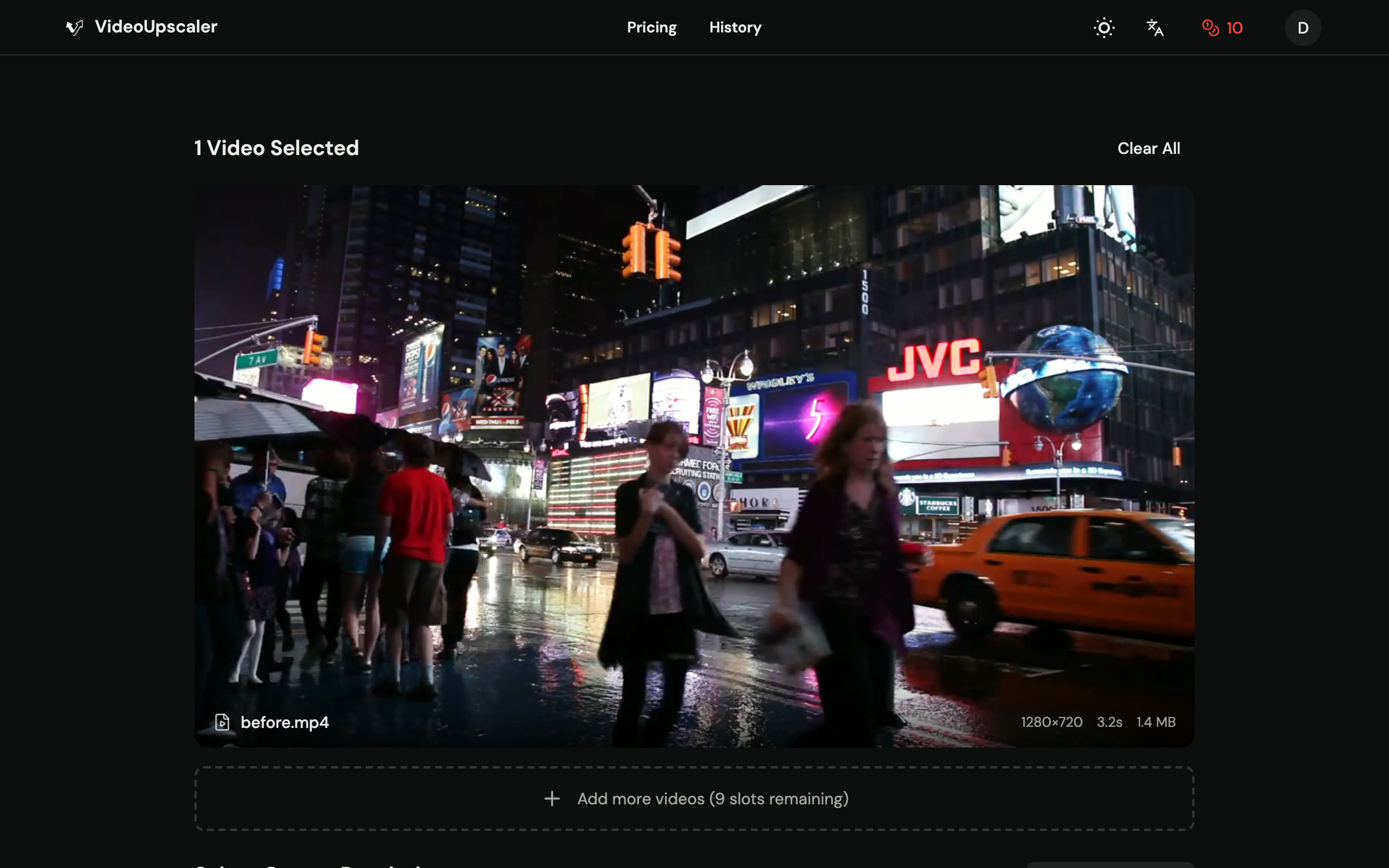
Most AI video upscalers run in the cloud. You upload a file, a GPU somewhere processes it, and you download the result. That is convenient and it gives everyone the same quality regardless of their hardware. It is also the wrong model for three kinds of footage: anything you are not allowed to upload, anything that is enormous, and anything you need to iterate on many times. For those, a Mac with Apple Silicon can do the work itself.
When local upscaling is the right call
Private or regulated footage. Interview recordings under NDA, medical or legal material, and family video you simply do not want on a server. If the policy says “do not upload”, the discussion ends there and a desktop app is the only option.
Very long files. A two-hour recital at 1080p can be tens of gigabytes. Cloud services cap upload size (VideoUpscaler’s web app takes files up to 500 MB) and even where they do not, the upload itself may take longer than the processing. On a local machine there is no upload at all.
Iteration. If you want to try several models or output sizes on the same clip, paying per second each time adds up, and waiting for each upload is tedious. Locally you render a short preview, compare, and only export the one you like.
What an Apple Silicon Mac can actually do
The M-series chips include a neural engine and a GPU that frameworks like Core ML can target, so upscaling models that once needed a discrete graphics card now run on a laptop. VideoUpscaler Desktop is one such app: it requires macOS 12 or later on an Apple Silicon Mac (M1 and newer), keeps the video on the machine, and offers a 7-day free trial. Its feature list is a good summary of what local processing makes possible:
- Upscale 2× or 4×, or choose a preset from 1080p up to 8K.
- An Auto mode that picks an anime model for line art and a general model for everything else, with six models in total that download on first use.
- Face recovery, which restores detail in faces that plain upscaling leaves soft.
- Frame interpolation for higher frame rates or slow motion, plus stabilisation and deinterlacing for old tape transfers.
- A 2-second preview rendered before you commit to the full export, so you can compare models without rendering the whole file.
Intel Macs and Windows are not supported by that app at the time of writing; the download page lets you vote for which platform comes next.
What to expect from speed
Local processing is bounded by your chip. A short clip at 2× is quick on any M-series Mac; a feature-length 4× pass to 8K is an overnight job on a base model and a few hours on a Max or Ultra chip. The preview feature exists precisely so you do not discover a wrong setting at hour three. Plug in, disable sleep, and let it run.
Cloud GPUs are faster per clip and do not tie up your machine, which is why for short, non-sensitive footage the web app is still the simpler route. The tools overview on VideoUpscaler lays out the four ways to run the same kind of model (browser, Mac app, REST API and MCP server) and which one suits which job.
A sensible workflow for a long private file
- Copy the original to a fast internal drive; external spinning disks slow down the read and write stages.
- Pick the model with a 2-second preview on a hard section (faces, fast motion), not the title card.
- Export at the smallest resolution that serves the destination. 4K is enough for a TV; 8K is for archival or cropping.
- Keep the original. Models improve, and you will want to re-run it in a year.
Local versus cloud at a glance
| On your Mac | In the cloud | |
|---|---|---|
| Footage leaves the machine | No | Yes |
| File size limit | Your disk | Service cap (e.g. 500 MB) |
| Speed | Depends on chip | Consistent |
| Cost model | Licence | Per second of video |
| Preview before full run | Yes | Test clip |